
How to Fix the Steam.dll Error — Complete A→Z Guide
Short summary: If Windows shows an error referencing steam.dll — “steam.dll is missing”, “steam.dll not found”, or a crash mentioning steam.dll — this guide gives every dependable fix: quick checks, Steam-specific repairs, Windows system fixes (SFC/DISM), anti-malware checks, driver and redistributable updates, safe DLL replacement practices, and advanced recovery. Follow the steps in order — most users are fixed within the first 5 sections.
What is steam.dll and why does it matter?
steam.dll is a dynamic link library used by Valve’s Steam client and often by games that integrate Steamworks. If it’s missing, corrupt, or blocked, Steam or a Steam-launched game may crash, refuse to start, or throw runtime errors. Causes include corrupted update, accidental deletion, antivirus false-positive quarantine, filesystem corruption, or malware.
Before we start — safety & backups
Important: don’t download DLL files from random DLL websites — those are often malicious. Follow these trusted actions first: create a System Restore point, back up any important save files (in Documents or Steam userdata), and if possible make a temporary image/backup of the drive if it contains irreplaceable data.
How to Fix steam.dll Error on Windows — Complete 2025 Guide
The steam.dll error is one of the most frustrating issues PC gamers face. It appears when a game, software, or Windows system cannot locate, load, or verify the steam.dll file. This problem can occur even if Steam is fully installed — or even more commonly, when Steam is not installed at all but the game depends on it. This guide provides every working fix from beginner-level to advanced — all updated for 2025 and suitable for all users.
1. Main Causes of steam.dll Missing or Not Found Error
- Steam is not installed: Many games require Steam to be installed even if launched outside Steam.
- The game requires an “alternate launch file”: Some backup, repacked, or portable versions of games require a different executable file instead of the normal launcher. When that file is missing or incorrect, the system searches for steam.dll and fails.
- steam.dll deleted by antivirus: Windows Defender or third-party antivirus can falsely detect steam.dll as unsafe and quarantine it.
- Corrupted Steam installation: Missing appcache, corrupted binaries, or incomplete updates.
- Game cannot locate the correct Steam directory: Registry path issues.
- Wrong or incompatible steam.dll in the game folder: Some games ship incorrect versions or the wrong architecture (32/64-bit).
- Virus/malware replaced the DLL: Rare but extremely serious.
- Windows missing Visual C++ redistributables or system runtime files.
- Using an outdated game launcher or invalid shortcut.
2. Install or Reinstall Steam (Fix for Users Who Do NOT Have Steam Installed)
If a game requires the Steam environment to run, Windows will show a steam.dll missing alert even if the installer looks complete. To fix this:
- Download Steam from the official website.
- Install it fully.
- Log in once and let Steam update itself.
- Restart your PC.
Now try running the game again. For many users, this alone completely solves the error.
3. If Your Game Uses an “Alternate Launch File” (Formerly Known as Crack)
Some game downloads require an “alternate game launch file” instead of the default launcher. This happens with older games, offline saves, portable builds, or manually backed-up copies.
What happens is:
- The main EXE tries to connect to Steam.
- Steam is not available → it searches for steam.dll.
- Error appears.
Fix:
- Check the game folder for an alternate file such as game_launcher.exe, start_game.exe, or special_start.exe.
- Use that file to start the game instead of the normal EXE.
- Delete any old shortcuts and create a shortcut from the correct file.
If the alternate file is missing, incomplete, or damaged — the steam.dll error will always appear.
4. Download steam.dll Manually (If You Really Need It)
If the file is completely missing, you can manually download a fresh copy. Add your trusted link here:
Download link: Download steam.dll
Where to place steam.dll:
✔ 1. Put steam.dll in the game directory
YourGameFolder/steam.dll
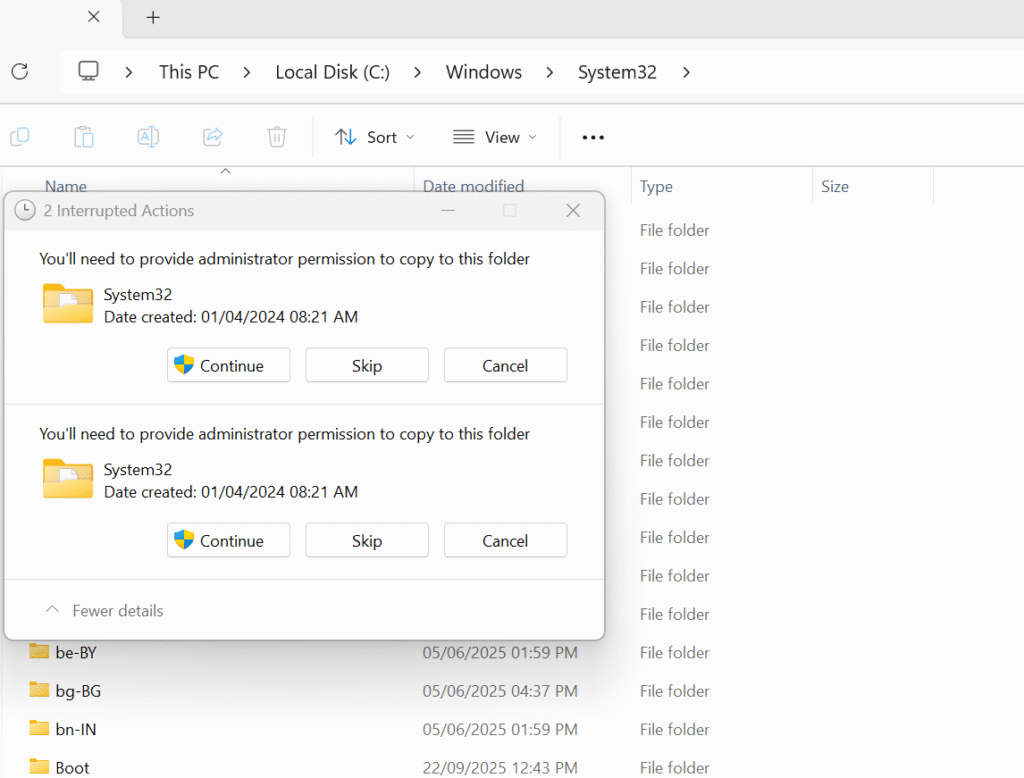
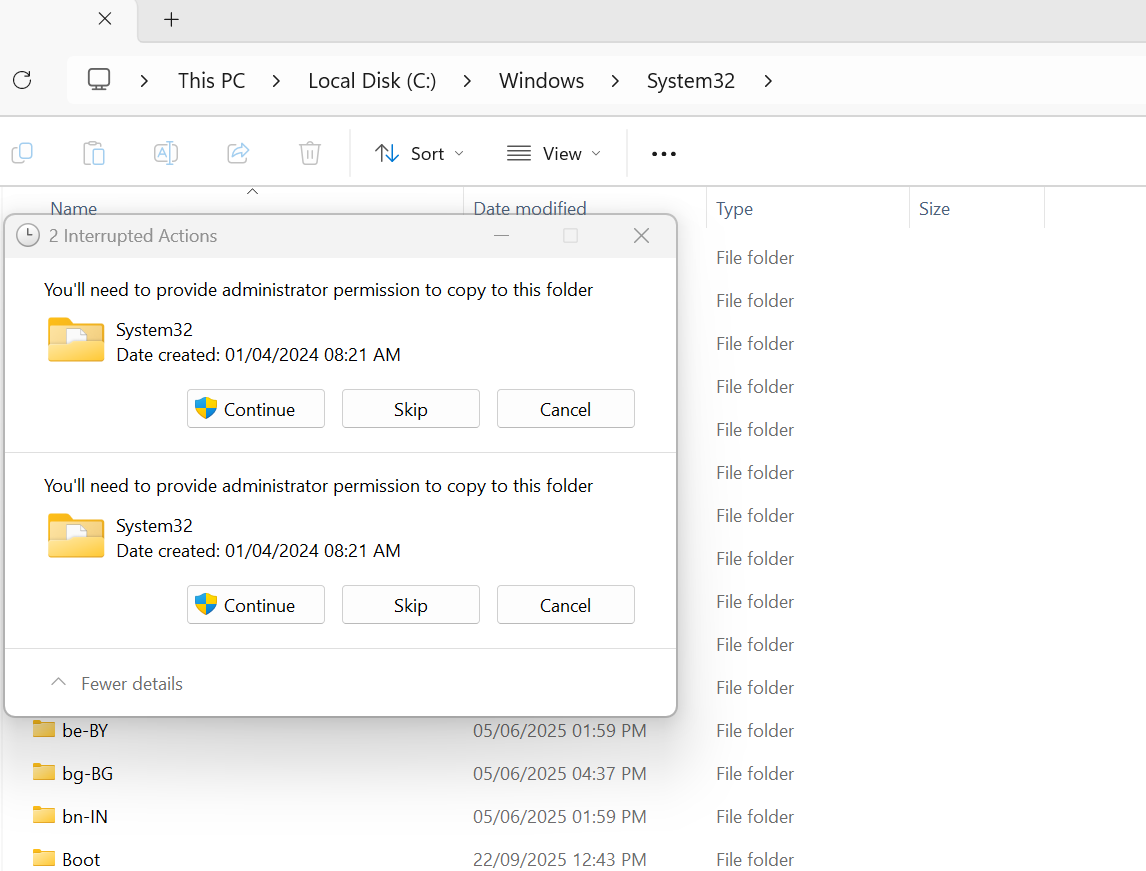
✔ 2. Put steam.dll in System32 (for 64-bit Windows)
C:\Windows\System32\steam.dll
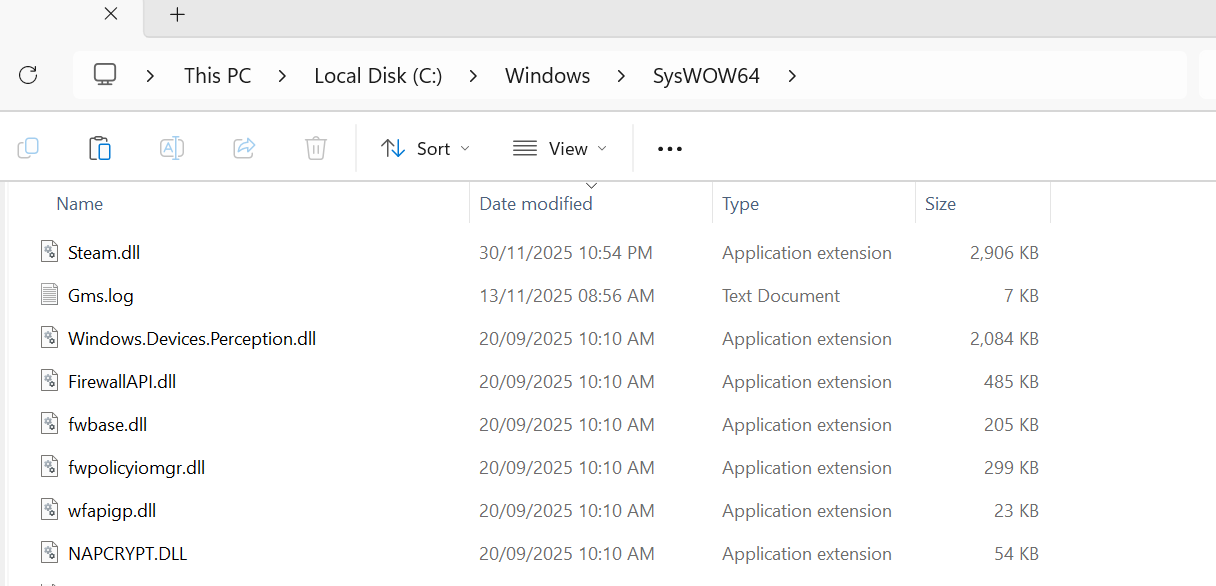
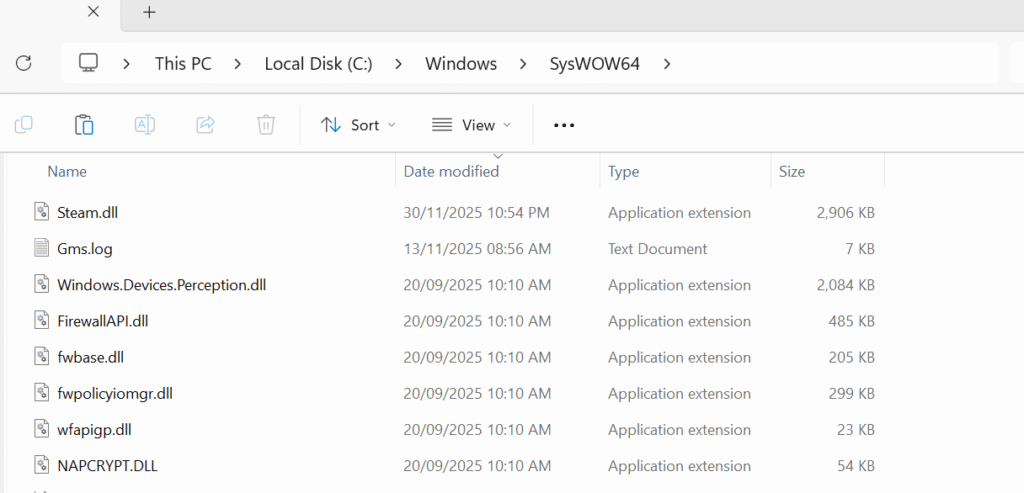
✔ 3. Put steam.dll in SysWOW64 (for 32-bit compatibility)
C:\Windows\SysWOW64\steam.dll
Restart your PC after placing the file.
5. Verify Steam Files to Recover a Corrupted steam.dll
- Open Steam.
- Go to Library → Right-click game → Properties.
- Click Installed Files.
- Select Verify integrity of game files.
This restores a broken steam.dll instantly.
6. Restore steam.dll Quarantined by Antivirus
Sometimes antivirus falsely deletes steam.dll.
- Open Windows Security → Virus & Threat Protection.
- Click “Protection History”.
- Look for steam.dll.
- Click Allow or Restore.
Restart your PC afterwards.
7. Reinstall Visual C++ Redistributables (Fixes Runtime Failure)
Steam and many games rely on Visual C++ files. If one is missing, DLL errors appear.
Install these:
- Visual C++ 2013
- Visual C++ 2015–2022
- DirectX Runtime
8. Fix Registry Path to Steam
If Steam’s installation path is corrupted, games cannot detect steam.dll.
- Press Win + R → type regedit.
- Go to:
HKEY_CURRENT_USER\Software\Valve\Steam
- Ensure SteamPath points to your real installation folder.
FAQ (Quick Answers)
- Can you run a game without steam.dll? Only if the game supports alternate launch files.
- Is it safe to download steam.dll? Yes, from trusted sources only.
- Does reinstalling Steam fix the error? For 70–80% of users, yes.
- Why does the error come back? Incorrect folder placement, antivirus deletion, or wrong game launcher.
- Restart the PC and run Steam as Administrator.
- Verify game files (if error happens for a specific game).
- Temporarily disable antivirus / restore steam.dll from quarantine.
- Run Windows SFC (sfc /scannow) and DISM if needed.
Step-by-step fixes — start here (most likely to work)
1) Simple restart & run Steam as Administrator
Close Steam completely (right-click tray icon → Exit), reboot, then right-click the Steam shortcut and choose Run as administrator. Sometimes the issue is permissions or a stuck updater process.
2) Check your antivirus/quarantine
Antivirus or Windows Defender occasionally flags Steam components after updates. Open your antivirus/quarantine logs and look for steam.dll — if found, restore and add an exclusion for the Steam installation folder (usually C:\Program Files (x86)\Steam).
3) Repair Steam via built-in method (safe, vendor-backed)
Repairing Steam reinstalls core files without touching your games:
1. Close Steam.
2. Press Win+R → paste:
"C:\Program Files (x86)\Steam\bin\SteamService.exe" /repair
3. Restart PC and run Steam.
If Steam is in a custom location, adjust the path accordingly.
4) Verify game files (if error occurs when launching a game)
If only one game shows steam.dll errors, verify that game’s files:
- Open Steam → Library → right-click game → Properties → Local Files → Verify integrity of game files.
- Steam will re-download any missing or corrupted files.
5) Reinstall Steam (non-destructive method)
You can reinstall Steam while preserving your game files; the key is to keep the steamapps folder:
- Exit Steam and backup the entire Steam folder (optional).
- Move
C:\Program Files (x86)\Steam\steamappsto the Desktop temporarily (or leave it in place if reinstalling to the same folder). - Uninstall Steam via Apps & Features.
- Reinstall Steam from steampowered.com and copy back the
steamappsfolder if you moved it.
This replaces corrupted client DLLs while keeping your installed games.
Windows & system repairs (if Steam repairs don’t work)
6) Run System File Checker & DISM
Corrupt Windows system files can indirectly break DLL loading. Run these commands in an elevated Command Prompt (Admin):
sfc /scannow
DISM /Online /Cleanup-Image /RestoreHealth
Restart after they complete and test Steam again.
7) Check disk health & file system
Bad sectors and file system errors can corrupt files. Run CHKDSK:
chkdsk C: /f /rSchedule it at next reboot if prompted. If your drive is failing, clone it first and replace the drive.
8) Reinstall Microsoft Visual C++ Redistributables
Many games and Steam components depend on VC++ runtimes. Reinstall or repair the commonly required redistributables (2015–2022):
- Download official packages from Microsoft — install both x86 and x64 where applicable.
9) Update Windows & device drivers
Install Windows Updates and update graphics drivers (NVIDIA/AMD/Intel). Outdated graphics drivers sometimes cause related errors when launching Steam games.
Advanced: safe DLL replacement & registry tips (expert steps — use care)
10) Don’t download random steam.dll files — why
Random DLL websites often offer malicious or outdated DLLs. Never use them. Always obtain steam.dll from a trusted source: the official Steam installer, game integrity check, or a backup of your own machine.
11) Replace steam.dll from a clean Steam install
If you have access to another clean PC with Steam installed, copy the steam.dll from that machine’s Steam folder to yours (same Steam build). Only do this if versions match and after scanning the source file for malware.
12) Re-register the DLL (rarely needed for Steam DLLs)
Most game Steam DLLs aren’t COM components, so regsvr32 is usually unnecessary. But if you replaced a COM-registered DLL, use (Admin):
regsvr32 "C:\Path\to\steam.dll"If regsvr32 returns an error, undo and use the vendor-repair steps.
When steam.dll error happens during Windows startup or affects multiple apps
If the error appears at boot or across several applications, consider these broader checks:
- Malware scan with Malwarebytes and Windows Defender Full Scan.
- Perform a Clean Boot (msconfig → disable non-Microsoft services) to identify interfering software.
- Run System Restore to a point before the issue began.
Expert diagnostics — how to find the root cause
- Event Viewer: open Windows Logs → Application and System around the time of the error. Note faulting module names and error codes.
- Process Monitor (Sysinternals): capture file operations to see which path is failing to load steam.dll.
- Dependency Walker or PE-scan: check whether the DLL depends on other missing DLLs.
Troubleshooting matrix — which step to try based on symptom
| Symptom | First step to try | Follow-up |
|---|---|---|
| “steam.dll missing” error on game launch | Verify integrity / reinstall that game | Repair Steam client; reinstall VC++ |
| Steam client crashes on start | Repair Steam service (SteamService.exe /repair) | Reinstall Steam while preserving steamapps |
| Antivirus flags steam.dll | Restore from quarantine & add exclusion | Reinstall Steam and whitelist folder |
| Error after Windows update | Run DISM + SFC & rollback update if recent | Clean reinstall Steam |
Recovery & data safety — what to do if nothing works
If you cannot restore Steam or a game and have important save data, do this first:
- Copy
steamapps\common\[GameFolder]\saves(or check Steam Cloud if enabled). - Clone the drive using Macrium Reflect Free or similar to an external disk before destructive repairs.
- If the drive is failing, seek a data recovery service for critical data — don’t run destructive tools that write to the disk.
Prevention — keep steam.dll and Steam healthy
- Keep Steam updated via the official client; avoid beta branches unless you know what they change.
- Set your antivirus to exclude the Steam folder from real-time scans (after you confirm no infection).
- Back up the
steamapps\commonfolder and your saved games periodically. - Run Windows updates and keep drivers current to avoid interoperability bugs.
Quick reference — commands & safe steps (copyable)
REM Repair Steam service
"C:\Program Files (x86)\Steam\bin\SteamService.exe" /repair

REM Verify system files
sfc /scannow
DISM /Online /Cleanup-Image /RestoreHealth

REM Check disk
chkdsk C: /f /r
FAQ — common questions (short & practical)
Q: Can I fix steam.dll by downloading it from a DLL site?
A: No. Those files often contain malware or are wrong versions. Use Steam repair methods or copy from a trusted Steam installation.
Q: My antivirus keeps quarantining steam.dll — what now?
A: Restore the file and add an exclusion for your Steam folder. Then update Steam and rerun a full antivirus scan on the Steam installer to be safe.
Q: Steam still crashes after reinstall — what should I check?
A: Check Event Viewer for faulting module details, run SFC/DISM, and ensure VC++ redistributables and GPU drivers are up-to-date.
Final notes — when to contact Valve or a pro
If you’ve tried Steam client repair, reinstall, SFC/DISM, verified game files, scanned for malware, and the issue persists across clean Windows installs or multiple machines, report the bug to Valve with crash dumps and Event Viewer logs. For drive hardware failure or corrupted game data you cannot recover, contact a data recovery specialist.

![Does CPU affect FPS? [Solved]](https://pcexplorers.com/wp-content/uploads/2025/05/image-15-150x150.png "Does CPU affect FPS? [Solved] 15")