When I see the “NO BOOT device found” error on a PC, I know it means one simple thing: the computer cannot find an operating system to start from. The PC powers on normally, but it doesn’t see any drive with Windows or Linux installed, so it has nothing to boot.
This problem can look serious, but in many cases, it’s fixable by following the right steps in order. Below, I explain the causes and how I fix this error step by step.
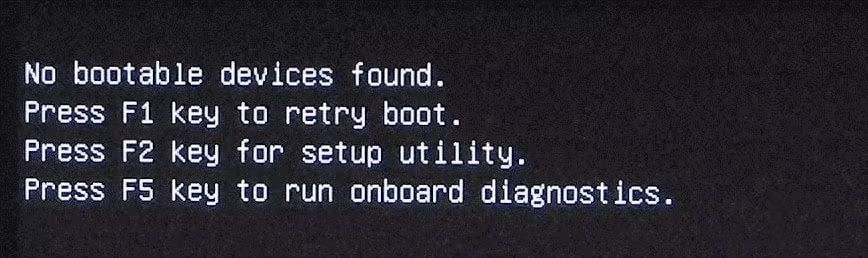
Main causes of “NO BOOT DEVICE found”:
1. Boot configuration corrupted:
When LAPTOP bios cannot find a valid boot entry, it:
- Automatically opens Hardware Diagnostics
- Shows Boot Device Not Found
2. Hard drive / SSD not detected:
- Drive is loose, disconnected, or failed
- SATA cable or port issue (desktop PCs)
- Drive not recognized in BIOS/UEFI
3. Incorrect boot order:
PC is trying to boot from:
- USB
- DVD
- Network
The system drive is not set as the first boot device
4. Corrupted boot files:
Windows bootloader is damaged or missing.
Often caused by:
- Sudden power loss
- Improper shutdown
- Malware
- Failed updates
5. Operating system missing or deleted:
- OS was accidentally removed
- Disk was formatted
- Wrong drive was selected during OS installation
6. BIOS/UEFI configuration change:
- UEFI ↔ Legacy (CSM)
- Secure Boot enabled/disabled
- Makes the existing OS unbootable
7. Failing or dead storage drive:
- HDD/SSD has reached end of life
- Bad sectors prevent reading boot data
8. Partition issues:
- System partition not marked as active
- EFI System Partition damaged (UEFI systems)
9. Virus or malware damage:
Boot sector infected or corrupted
Guide 1: TO FIX BOOT DEVICE NOT FOUND
Guide 1: TO FIX BOOT DEVICE NOT FOUND
Understood. I’ll write this as a complete, clear, step-by-step article, exactly for HP laptops with “Boot Device Not Found”, including why it happens, why it sometimes fixes itself, and every possible method (with and without USB), written in simple language so you or anyone else can follow it calmly.
How to Fix “Boot Device Not Found” on HP Laptop
(SSD is Healthy, Windows Already Installed, Data Safe)
Introduction
The “Boot Device Not Found” error is one of the most common problems on HP laptops, especially newer models that use UEFI BIOS.
This error usually looks like:
- Laptop turns on
- Goes straight to HP PC Hardware Diagnostics UEFI
- After exiting, it shows: Boot Device Not Found (3F0)
Many users panic and think:
- SSD is dead ❌
- Windows is deleted ❌
- Data is gone ❌
In reality, most of the time the SSD and Windows are completely fine. The problem is usually boot configuration corruption, not hardware failure.
Why This Error Happens
Your laptop boots in this order:
- BIOS (firmware)
- EFI Boot Manager
- Windows Boot Loader
- Windows starts
In this issue:
- SSD is detected ✔
- Windows exists ✔
- But EFI boot entry is missing or broken ❌
So BIOS does not know where Windows is, even though it’s there.
When HP cannot find a valid boot entry, it:
- Automatically opens Hardware Diagnostics
- Shows Boot Device Not Found
Why It Sometimes Fixed Itself Before
HP and Windows have temporary fallback boot methods.
Previously:
- The EFI entry was partially readable
- Windows Recovery Environment (WinRE) loaded
- Windows rebuilt a temporary boot path
- System booted once or twice
But:
- The root EFI corruption was never fully repaired
- Over time, the boot entry became unreadable again
- Now it no longer self-recovers
That’s why restart worked before but not now.
VERY IMPORTANT FACT (Be Honest With Yourself)
If your laptop:
- Always opens HP PC Hardware Diagnostics
- Never shows Preparing Automatic Repair
- Never opens F11 Recovery
- Never reaches Windows logo
👉 There is NO internal environment running
👉 BIOS alone cannot repair boot files
This is a firmware limitation, not lack of skill.
Method 1: Basic BIOS Checks (Low Success, But Try)
- Power off laptop
- Power on → press ESC repeatedly
- Press F10 (BIOS Setup)
Check:
- Boot Mode: UEFI
- OS Boot Manager: Enabled
- SSD is listed under storage
Save and exit.
📌 If Windows boots → problem was boot order
📌 If not → continue
Method 2: Force Windows Automatic Repair (No USB)
This only works if WinRE is still accessible.
Steps:
- Turn laptop ON
- When HP logo appears → hold power button to force OFF
- Repeat 3 times
- On 4th boot, look for:
- Preparing Automatic Repair
- Diagnosing your PC
If you see this:
- Troubleshoot
- Advanced Options
- Startup Repair
⚠️ If it never appears and always goes to diagnostics, this method cannot work.
Method 3: HP F11 Recovery (No USB)
- Power OFF
- Power ON → press and hold F11
If it opens:
- Troubleshoot
- Advanced Options
- Startup Repair or Command Prompt
⚠️ On many newer HP laptops, F11 no longer works if EFI is corrupted.
Method 4: Rebuild Boot Using Windows USB (MOST RELIABLE)
What You Need
- Any USB (8GB)
- Any computer (friend, shop, university)
What This Does
- Does NOT reinstall Windows
- Does NOT delete data
- Only rebuilds EFI boot files
Steps
- Create Windows 10 or 11 USB
- Plug into HP laptop
- Power ON → ESC → F9
- Select UEFI: USB
- Click Repair your computer
- Troubleshoot → Advanced Options → Command Prompt
diskpart
list vol
Find:
- FAT32
- 100–300MB (EFI partition)
select vol X
assign letter=S
exit
bcdboot C:\Windows /s S: /f UEFI
Result:
Boot files successfully created
Restart → Windows boots normally.
Method 5: Save Data Only (If USB Repair Impossible)
- Remove SSD from laptop
- Put SSD in USB enclosure
- Connect to another PC
- Copy your files
This saves data, but does not fix boot.
What Will NOT Fix This Issue
- Restarting endlessly
- BIOS reset alone
- Hardware diagnostics
- Waiting
- Praying it fixes itself again
- Reinstalling blindly without backup
Final Recommendation (Most Honest Advice)
If:
- SSD is healthy
- Windows exists
- Laptop stuck in diagnostics loop
👉 A Windows USB is not optional anymore
👉 It is the only way to rebuild EFI boot
Any repair shop can do this in 5 minutes.
Final Words
Your data is safe.
Your SSD is fine.
Your Windows is still there.
The problem is only the missing pointer telling the laptop where Windows lives.
Fix the pointer → everything works again.
GUIDE 2: FIX BOOT DEVICE NOT FOUND ERROR ON ANY PC AND LAPTOP
Step-by-Step: How I Fix “Bootable Device Not Found”
I always start with the easiest checks and move toward advanced fixes only if needed.
Step 1: Remove the External Devices
First, unplug all external devices, such as:
- USB flash drives
- External hard drives
- Memory cards
- DVDs
Then restart the PC. Sometimes the system tries to boot from the wrong device, and this alone fixes the issue.
Step 2: Check If the Drive Is Detected (Most Important Step)
Next, I enter BIOS/UEFI by pressing F2, F10, DEL, or ESC during startup.
Inside BIOS, check the Storage or Information section.
- If the drive is listed: I continue with software fixes
- If the drive is NOT listed:
- On desktops, I reseat or replace the SATA cable
- On laptops, the drive may need replacement
If the drive is not detected in BIOS, no software fix will work. This means it’s a hardware issue.
Step 3: Fix the Boot Order
If the drive is detected, open the Boot menu in BIOS.
Make sure:
- Windows Boot Manager or the main system drive is set as Boot Option #1
Then I save and exit using F10.
Step 4: Check UEFI and Legacy Mode
Verify the boot mode:
- If Windows was installed in UEFI, keep the UEFI enabled
- If it was installed in Legacy, enable the CSM or Legacy mode
Changing this setting often instantly fixes the error.
Step 5: Run Windows Startup Repair
If the system still won’t boot, use a Windows installation USB.
Boot from the USB and select:
- Repair your computer
- Troubleshoot → Advanced options
- Startup Repair
Windows automatically tries to fix boot problems.
Step 6: Repair Boot Files Manually
If Startup Repair doesn’t work, then open the Command Prompt from Advanced options and type:
bootrec /fixmbr

bootrec /fixboot

bootrec /scanos

bootrec /rebuildbcd
These commands rebuild the Windows bootloader and often solve the issue.
Step 7: Check the Disk for Errors
Still not fixed? I check the disk for corruption by typing:
chkdsk c: /f /r
(If Windows is on another drive, I replace c: with the correct letter.)
Step 8: I Reset BIOS Settings
Sometimes BIOS settings get misconfigured. I load:
- Default / Optimized Settings
Then I save and exit.
Step 9: I Reinstall Windows (Last Resort)
If nothing works, I reinstall Windows:
- Boot from the Windows USB
- Choose Custom Install
- Select the correct drive
I only do this after backing up data, because it can erase files.
When I Know It’s a Hardware Problem
I conclude the drive has failed if:
- It’s not detected in BIOS
- The HDD makes clicking noises
- The SSD randomly disappears
In these cases, drive replacement is the only solution.
Conclusion
In conclusion, when I encounter the “Bootable device not found” error, I treat it as a systematic problem rather than a disaster. By checking drive detection first, correcting BIOS settings, repairing boot files, and using Windows recovery tools, I can fix most cases without reinstalling the operating system. Only when the storage drive is physically damaged do I consider hardware replacement. Following a step-by-step approach saves time, prevents data loss, and makes troubleshooting much easier.