
How to Add Storage to a Skytech Gaming PC — Complete, Up-to-Date Guide (2025)
Quick summary: Adding storage to your Skytech gaming PC is one of the most cost-effective upgrades you can make. Whether you choose a high-capacity HDD for your game library, a SATA SSD for snappy app responsiveness, or a blazing NVMe SSD for instant load times, this guide walks you through everything step-by-step: compatibility checks, physical installation, BIOS and Windows setup, cloning vs fresh install, performance tuning, and advanced troubleshooting.
Why upgrade or add storage?
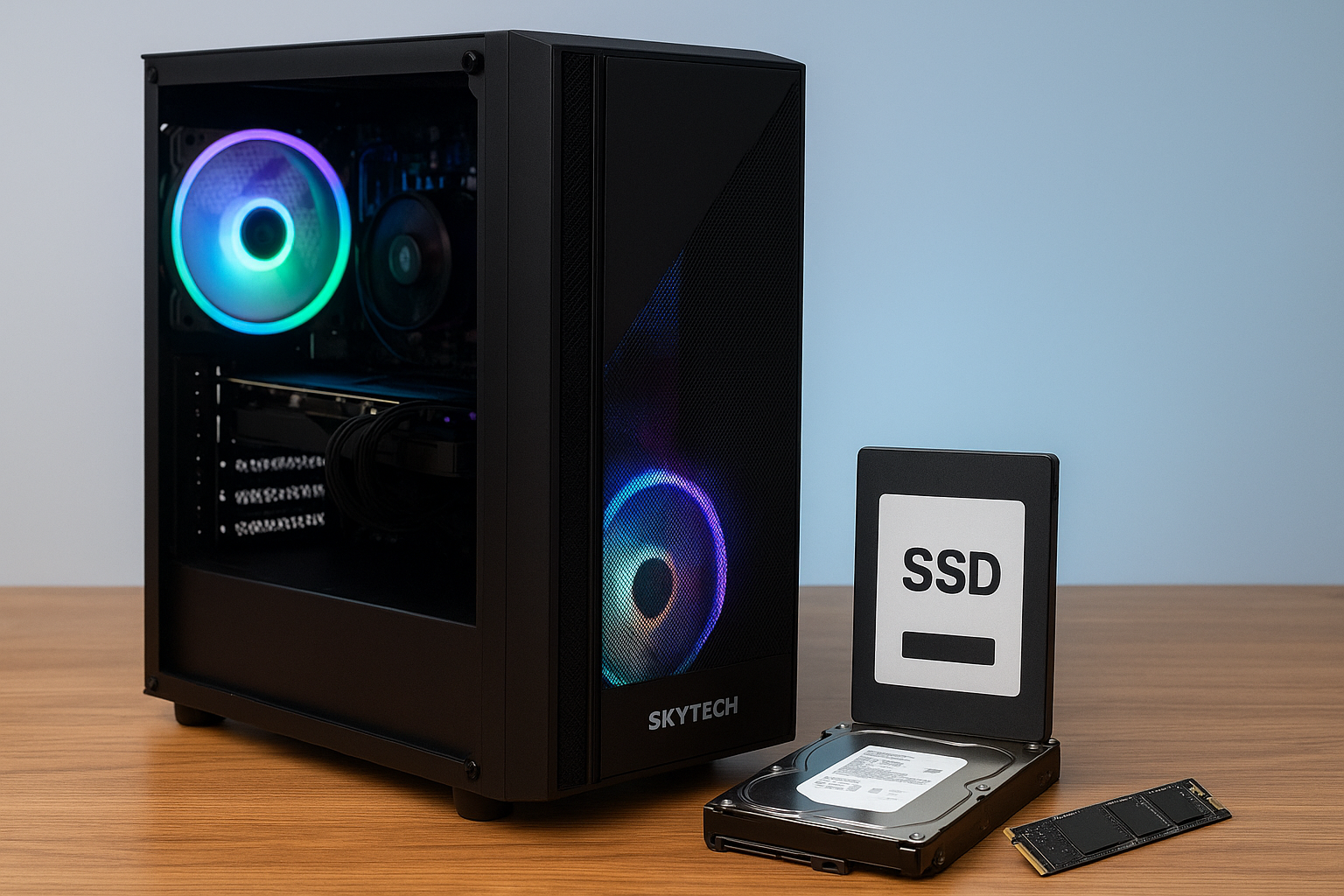
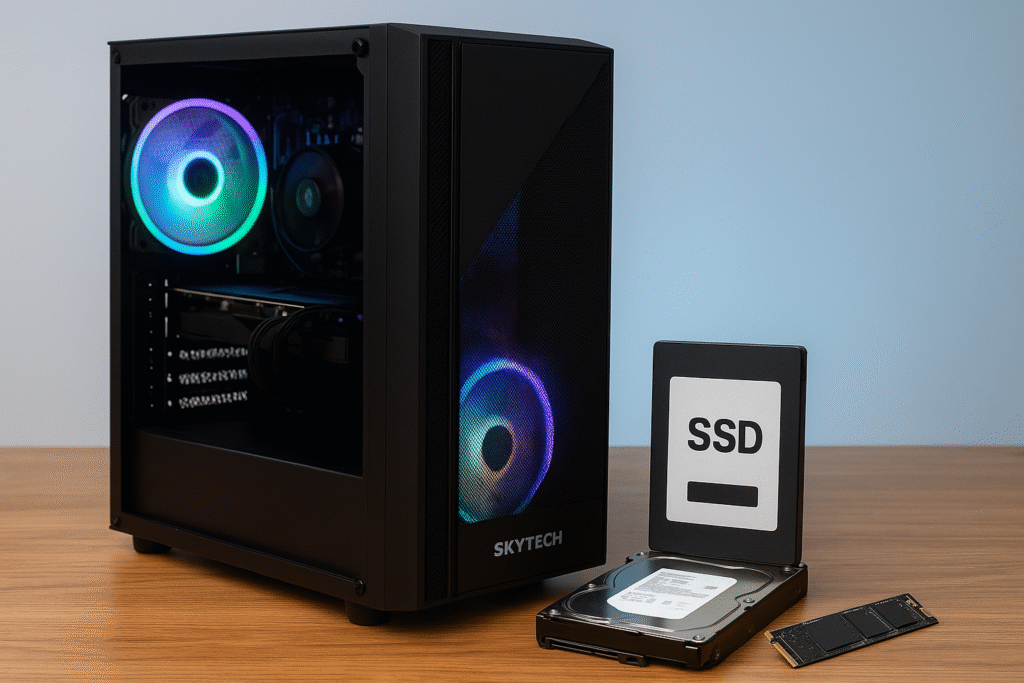
Storage upgrades matter for three reasons: capacity, speed, and longevity. More capacity means more games, captures, and projects. Faster storage (NVMe) drastically reduces load screens and improves game streaming responsiveness. Finally, healthy storage (not nearly full, trim-enabled) prolongs lifespan and keeps performance high. For Skytech owners, storage upgrades are often straightforward — Skytech desktops typically include spare SATA ports, free 3.5″ or 2.5″ bays, and at least one M.2 slot — but always confirm your specific model.
Before you buy: compatibility checklist
Do these three quick checks before ordering hardware:
- Open your case or read the spec sheet. Look for available 2.5″ trays, 3.5″ bays, SATA ports, and M.2 slots on the motherboard. If you prefer not to open the case, check the Skytech model page or the invoice for the motherboard model and look up its manual.
- Decide between SATA vs NVMe: SATA SSDs plug into SATA ports and use the power connector from the PSU. NVMe drives plug into M.2 slots (PCIe lanes) and offer much higher speed. If your motherboard has two M.2 slots, verify lane configuration — sometimes the second M.2 shares lanes with SATA ports or PCIe slots.
- Power & cables: ensure your PSU has a spare SATA power connector (or use a Molex-to-SATA adapter). For 3.5″ HDDs you also need a spare SATA data cable unless one’s included with the drive or case.
Which drive should you choose?
The right choice depends on budget and use-case:
- Large capacity / budget: 3.5″ HDD (2TB–16TB) — cheap per TB, ideal for cold storage and large game libraries.
- General performance / value: 2.5″ SATA SSD (500GB–2TB) — huge boost over HDD for OS, apps, and frequently-played games.
- Top speed: NVMe PCIe SSD (M.2 NVMe, PCIe 3.0/4.0/5.0) — best for OS, scratch disks, and load-heavy games. PCIe 4.0 and 5.0 are progressively faster but ensure your motherboard/CPU supports the speed.
Recommended picks by role
- Primary OS drive (best balance): 1TB NVMe PCIe 4.0 SSD (e.g., Samsung 980/990 EVO class or WD Black SN770/ SN850 class).
- Fast game drive: 2TB NVMe or 2.5″ 2TB SATA SSD for large installs.
- Bulk storage: 4–16TB NAS or desktop HDD (Seagate IronWolf / Western Digital Red/Blue depending on use).
Physical installation — step-by-step
Turn off your PC and unplug it before starting. Ground yourself (anti-static strap or touch metal chassis) to avoid ESD damage.
Installing a 2.5″ SATA SSD or 3.5″ HDD
- Open the case — unscrew the side panel and place the PC on a flat surface.
- Identify an empty drive bay or 2.5″ tray. Many Skytech cases use tool-less trays or standard screws.
- Slide the drive into the tray and secure it with screws (or lock into the tool-less bay).
- Connect a SATA data cable: plug one end into the drive, the other into an available SATA port on the motherboard. If no SATA cable is free, use the spare one that came with your case or buy a short cable.
- Connect a SATA power cable from the PSU to the drive.
- Close the case, reconnect power, and boot.
Installing an M.2 NVMe SSD
- Find the M.2 slot on the motherboard (consult your motherboard manual if unsure).
- If a heatsink is installed over the slot, gently remove it (some boards have a screw-down heatsink).
- Insert the M.2 drive at a ~30° angle into the slot and press it down flat; secure it with the small standoff screw included with the motherboard.
- If applicable, reattach the M.2 heatsink or use a thin thermal pad for better cooling — NVMe drives can throttle if not cooled.
- Close the case and boot into BIOS to confirm detection.
BIOS / UEFI & Windows setup
After the drive is physically connected, confirm the OS can see it.
Check in BIOS/UEFI
- Enter BIOS (press DEL or F2 on boot — your motherboard manual will have the exact key).
- Look under Storage / Boot / NVMe Configuration to ensure the new drive is listed.
- If installing an NVMe as boot drive, ensure PCIe mode and NVMe support are enabled and that SATA mode is set to AHCI (unless using RAID).
Initialize & Format in Windows
- Boot Windows. Open Disk Management (Win + X → Disk Management).
- If prompted to initialize the disk, choose GPT for modern systems (UEFI) or MBR only if you have legacy BIOS needs.
- Create a new volume, format it as NTFS (or exFAT for cross-OS use), choose a drive letter, and label it.
Cloning your OS vs Fresh Install
If you’re replacing the OS drive with a faster NVMe, you can clone your existing system drive or clean-install Windows. Each has pros and cons:
- Clone: Quick, keeps apps/settings. Use reliable tools like Macrium Reflect (free), Acronis True Image (vendor), or Clonezilla (advanced). After cloning, make sure to enter BIOS and set the new drive as the boot device. Also run
sysprepor repair bootloader if Windows won’t boot. - Fresh install: Clean slate, avoids old driver cruft. Back up data and product keys first. Boot Windows installer from USB and install to the new drive, then reinstall drivers and apps.
Post-install performance & best practices
- Enable TRIM: Windows normally does this for SSDs, but verify with an admin PowerShell:
fsutil behavior query DisableDeleteNotify(0 means TRIM enabled). - Check NVMe firmware: Use vendor utilities (Samsung Magician, WD Dashboard) and update firmware if recommended — firmware can fix stability and speed bugs.
- Bench & monitor: Run CrystalDiskMark or AS SSD to verify expected sequential & random speeds. Ensure thermal throttling isn’t occurring — NVMe temps over ~75°C can throttle sustained performance.
- Partition alignment: Modern Windows handles alignment automatically, but when cloning from older drives, ensure partitions are aligned for SSD performance.
Troubleshooting — common problems & fixes
Drive not visible in BIOS
- Recheck physical seating and standoff screw for M.2. Try a different M.2 slot or SATA port.
- Update motherboard BIOS — sometimes new NVMe drives need the latest firmware to be recognized.
Windows detects drive but shows unallocated
- Open Disk Management, create a new volumen and format as NTFS or exFAT.
- If the disk says offline or displays signature collision, right-click and choose online or import foreign disk.
Slow NVMe or SATA performance
- Ensure the drive is installed in a slot that supports the expected PCIe lanes (some cheap boards share lanes and slow the second slot).
- Check BIOS is set to PCIe/Auto (not legacy), and that AHCI is enabled for SATA.
- Install vendor NVMe drivers if available (Intel/Micron/WD/Samsung), and update firmware.
Maintenance & longevity tips
- Keep 10–20% free space on SSDs to preserve performance.
- Use your NVMe heatsink or add airflow to reduce temps during long gaming/stream sessions.
- Run periodic SMART checks with CrystalDiskInfo to detect early signs of failure.
Quick checklist – what to do first
- Confirm Skytech model & open case/spec page to find free bays/ports.
- Choose drive type (HDD for storage, NVMe for speed, SATA SSD for value).
- Install physically and boot to BIOS to confirm detection.
- Initialize & format in Disk Management or clone Windows using Macrium Reflect if replacing OS drive.
- Run benchmarks, enable TRIM, update firmware.
FAQs (short)
Can I use both SSD and HDD together?
Yes — that’s the recommended setup: SSD for OS/games you play frequently, HDD for mass storage and backups.
Do I need an adapter for NVMe?
No, NVMe M.2 drives plug directly into M.2 slots. Only use adapters if you plan to use an M.2 to PCIe adapter card — make sure BIOS supports booting from PCIe NVMe if you want it as a boot drive.
Will adding drives void my Skytech warranty?
Most Skytech systems allow user upgrades of storage without voiding warranty, but check Skytech’s official warranty policy or contact support if the system is under specific restrictions.
Meta Title, Description & Schema (paste into head for SEO)
Meta Title: How to Add Storage to a Skytech Gaming PC — NVMe, SATA & HDD Guide (2025)
Meta Description: Step-by-step guide to adding storage in Skytech gaming PCs — NVMe, SATA SSD, and HDD installation, BIOS setup, cloning, troubleshooting and performance tuning.
Need model-specific instructions? Tell me your Skytech model (example: Skytech Shadow II, Skytech Blaze II, etc.) and I’ll provide exact M.2 slot locations, the number of available SATA ports, and tailored steps (including photos you can add to the article).

![Does CPU affect FPS? [Solved]](https://pcexplorers.com/wp-content/uploads/2025/05/image-15-150x150.png "Does CPU affect FPS? [Solved] 11")