d3dx9_43.dll & xinput1_3.dll Missing — Complete Fix Guide (Windows 7 → 11, 2025)
Short summary: The errors “d3dx9_43.dll is missing” and “xinput1_3.dll not found” are extremely common when running older games or apps that depend on legacy DirectX libraries. The safe, reliable fix in almost every case is to install Microsoft’s official DirectX redistributables (End-User Runtime / June 2010 or the Web Installer) and update graphics drivers — not grabbing random DLL files from third-party sites. This guide gives every step, from the fastest 60-second fixes to advanced Windows-level repairs.
Why these errors happen (short)
- d3dx9_43.dll — part of legacy DirectX 9 helper libraries (D3DX9). Modern Windows (10/11) doesn’t always include these legacy helper DLLs by default; older games require them.
- xinput1_3.dll — a version of Microsoft’s XInput used by many older games for controller input. It’s distributed via legacy DirectX packages and some runtimes.
- Other causes: corrupted DirectX install, missing Visual C++ runtimes, antivirus quarantine, incorrect game files or broken installers, outdated GPU drivers, or running incompatible 32/64-bit DLLs for your app.
Top-level quick fixes (try these first — 60 seconds)
- Close the game, reboot Windows, then try again.
- Run Windows Update (sometimes missing runtime patches are installed via Windows Update).
- Install the official DirectX End-User Runtime (Web Installer) — the single most effective fix.
- Verify the game files / reinstall the game via Steam/Origin/EPIC (use the client’s “Verify integrity” feature).
Note: If you see advice to “download d3dx9_43.dll from DLL-sites” — don’t. Untrusted DLL downloads are a major malware vector. Always prefer Microsoft’s redistributable installers or the game’s installer.
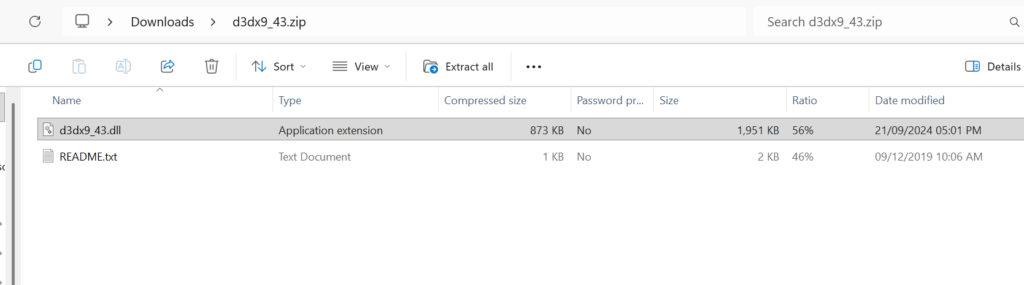
Download d3dx9_43.dll From Here Download xinput1_3.dll From HereStep-by-step fixes — detailed (start at #1 and move down until fixed)
Fix 1 — Install Microsoft DirectX End-User Runtimes (June 2010) or Web Installer (recommended)
Why: These packages contain D3DX9 helper DLLs (including d3dx9_43.dll) and XInput 1.3 files required by many older games. This is the official and safest method.
- Download the Web Installer from Microsoft: DirectX End-User Runtime Web Installer. (official Microsoft page) DOWNLOAD MICROSOFT DIRECTX RUNTIME 95MB
- Run the installer and accept its terms. It will extract and install legacy DirectX components into Windows.
- Reboot and run the game. Most users are fixed after this step.
Fix 2 — Run the game client’s “Verify integrity” / reinstall the game
- Steam: Library → right-click game → Properties → Local Files → Verify integrity of game files. This replaces damaged/missing game files. (If the game includes DirectX installers, this ensures they’re installed.)
- If verification fails or the problem remains, uninstall then reinstall the game (choose to let the game install its redistributables during installation).
Fix 3 — Update GPU drivers (NVIDIA/AMD/Intel)
Outdated drivers can cause runtime errors or incompatible DirectX behavior. Install the latest WHQL drivers from NVIDIA/AMD/Intel for your GPU. After installation, restart Windows and test the game.
Fix 4 — Restore quarantined files from antivirus
- Open your antivirus or Windows Defender → Protection history / Quarantine.
- If
d3dx9_43.dllorxinput1_3.dllappears, choose “Restore” and mark it as safe. - Then reinstall DirectX End-User Runtimes and reboot.
Fix 5 — Run System File Checker and DISM
Purpose: repair corrupted system files that could prevent DirectX components from working.
Open an elevated Command Prompt (Admin) and run: sfc /scannow

If issues persist, run:
DISM /Online /Cleanup-Image /RestoreHealth
After completion, reboot and test the game. These tools fix Windows corruption that can cause unpredictable DLL errors.
Fix 6 — Install Visual C++ Redistributables
Some games require Visual C++ runtimes (2010/2013/2015-2022). Install the common redistributables from Microsoft (x86 and x64) — especially if the game is 32-bit.
Fix 7 — Place DLL into the game folder (last resort & caution)
If a specific game still complains and you’ve installed the official DirectX runtimes, try copying the required DLL into the game installation folder (not from random sites — see below):
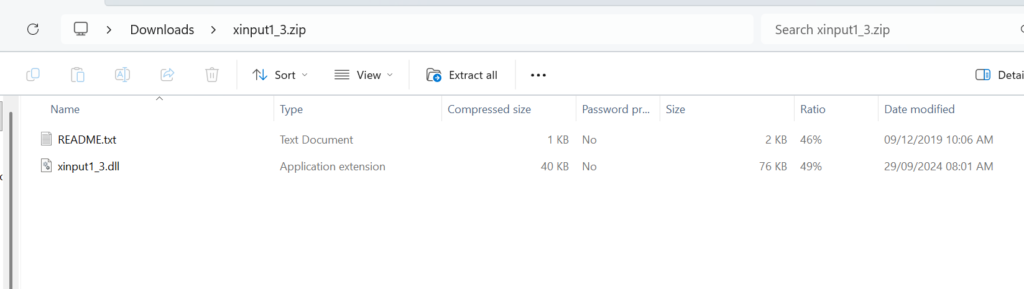
Download D3DX9_43.DLL From Here Download xinput1_3.zip From Here- Source the DLL via the DirectX redistributable (preferred) or extract from a working Windows installation of the same OS/bitness.
- Copy
d3dx9_43.dll/xinput1_3.dllinto the game folder (e.g.,C:\Program Files (x86)\Steam\steamapps\common\Game\). - Do NOT drop untrusted DLLs into
C:\Windows\System32orSysWOW64unless the file comes from Microsoft or a fully trusted source — improper DLLs create security risk.
Important security note: If you don’t have a trusted copy of the DLL, don’t download it from random DLL websites. Instead use the DirectX End-User Runtime installer or copy from a known-good machine. Downloading single DLLs from third-party sites is unsafe.
Fix 8 — Match 32/64 bit versions
- If the game is 32-bit, prefer the 32-bit DLL placed beside the game executable. If the game is 64-bit, the 64-bit library is needed.
- Installing the DirectX End-User Runtime automatically resolves the correct architecture in most cases.
Fix 9 — Use Dependency Walker / Process Monitor (advanced)
For advanced troubleshooting, tools like Dependency Walker or Microsoft’s Process Monitor reveal which DLLs the game tries to load and where it fails. Use them if you’re comfortable with advanced debugging — they show exact search paths and errors.
Fix 10 — If nothing works — clean Windows install environment checks
- Temporarily disable overlays (Steam/Discord/NVIDIA) and test.
- Create a new Windows user account and test (sometimes profile-level corruption causes problems).
- As a last resort, repair install Windows (keep files) or perform a clean install if the system is highly corrupted.
Comparison table — d3dx9_43.dll vs xinput1_3.dll (quick)
| DLL | What it is | Typical cause | Primary fix | Success rate (typical) |
|---|---|---|---|---|
| d3dx9_43.dll | DirectX 9 D3DX helper library | Older games requiring legacy D3DX9 files | Install DirectX End-User Runtime (June 2010/Web installer) | ~85–95% (when redistributable installed) |
| xinput1_3.dll | XInput 1.3 (controller input) from legacy DirectX | Older XInput-based apps, missing DirectX redistributable | Install DirectX End-User Runtime; update drivers | ~80–95% |
Sources: Microsoft DirectX redistributables and community troubleshooting threads.
Best practices & prevention
- Always use the game’s installer or Steam/Epic client to install redistributables (DirectX/VC++).
- Keep GPU drivers up to date (but prefer WHQL drivers for stability).
- Avoid downloading single DLLs from random sites — use Microsoft packages.
- Maintain periodic system checks: SFC / DISM and Windows Update.
- Keep backups of critical game saves before trying advanced fixes.
FAQ — quick answers readers search for (SEO-friendly)
Q: Can I just download d3dx9_43.dll from a DLL site?
A: Don’t. Third-party DLL downloads often contain malware, outdated files, or files built for different systems. Use Microsoft’s DirectX End-User Runtime or install the game’s redistributables.
Q: I installed DirectX 12 — why do I still get d3dx9_43.dll missing?
A: Windows DirectX 12 does not always include legacy D3DX9 helper libraries. The DirectX End-User Runtime (June 2010) installs the legacy helper DLLs required by many older applications.
Q: My antivirus deleted xinput1_3.dll — what do I do?
A: Restore the file from quarantine, then run the DirectX End-User Runtime and scan your system for malware. If the AV repeatedly flags it, the file may be corrupted or infected — do a clean reinstall of DirectX and drivers.
Q: Does Windows 11 include these DLLs?
A: Not always. Windows 10/11 include core DirectX components, but legacy D3DX9 / XInput 1.3 are provided via the DirectX redistributable package. Install the End-User Runtime to restore them.
Q: Which direct download should I use from Microsoft?
A: Use the official DirectX End-User Runtime Web Installer (Microsoft). It pulls required legacy components safely.
SEO metadata suggestions (paste to head)
Title: How to Fix d3dx9_43.dll & xinput1_3.dll Missing — Full Guide (Windows 10/11)
Meta description: Complete, safe fixes for “d3dx9_43.dll is missing” and “xinput1_3.dll not found”. Official DirectX installers, step-by-step repairs, SFC/DISM, antivirus checks and advanced troubleshooting — updated 2025.
Structured FAQ Schema (JSON-LD)
{ "@context":"https://schema.org", "@type":"FAQPage", "mainEntity":[ {"@type":"Question","name":"How do I fix d3dx9_43.dll missing?","acceptedAnswer":{"@type":"Answer","text":"Install the DirectX End-User Runtime (June 2010) or use the DirectX Web Installer from Microsoft; restart and verify game files."}}, {"@type":"Question","name":"Can I download the DLL from the internet?","acceptedAnswer":{"@type":"Answer","text":"No — avoid third-party DLL sites. Use official Microsoft packages to avoid malware and compatibility issues."}}, {"@type":"Question","name":"What about xinput1_3.dll not found?","acceptedAnswer":{"@type":"Answer","text":"Same solution: install DirectX redistributables and update GPU drivers; verify game files."}} ] } Final checklist (copy/paste for fast troubleshooting)
- Reboot → verify game → install DirectX End-User Runtime (web installer).
- Update GPU drivers → reinstall Visual C++ redistributables.
- Run
sfc /scannowandDISM /Online /Cleanup-Image /RestoreHealth. - Restore from antivirus quarantine if needed.
- Use Dependency Walker / Process Monitor for advanced debugging.